Using Filters to Find Better Deals
Learn how to use BrickSeek's filters to quickly narrow thousands of products into the deals that matter most to you.
Using Filters to Find Better Deals
BrickSeek can display thousands of products across multiple retailers. Filters help you narrow those results so you spend less time scrolling and more time finding deals that interest you.
Whether you're shopping for tools, electronics, toys, or something specific, filters make it much easier to focus on the products you're actually looking for.
Why Use Filters?
Without filters, you may see products from many different categories and retailers.
Applying filters allows you to quickly narrow your results based on what's important to you.
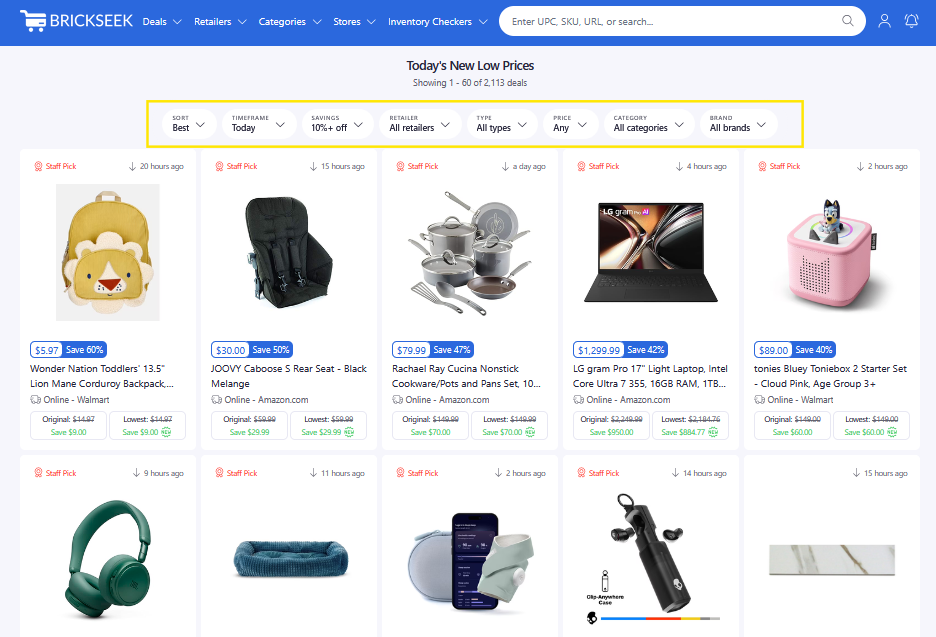
Depending on the page you're viewing, filters may include options such as:
- Category
- Retailer
- Price
- Savings
- Availability
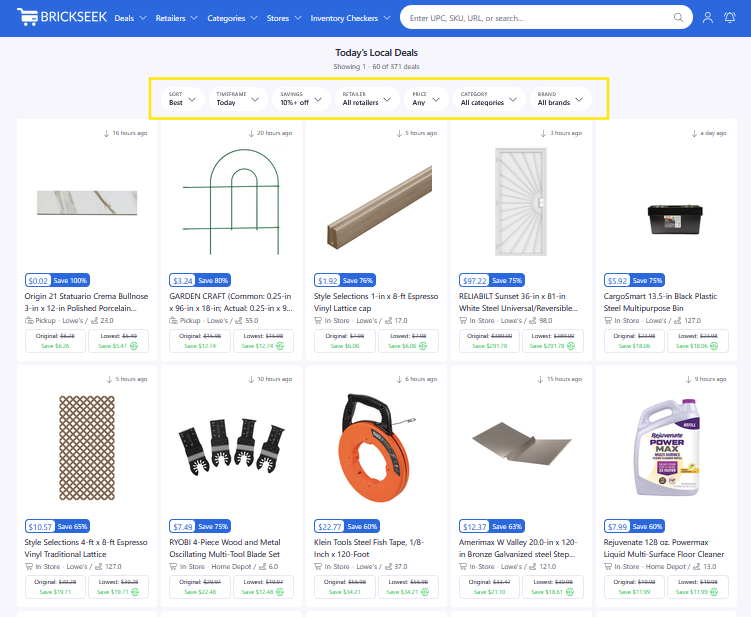
The available filters may vary from one page to another.
Combine Multiple Filters
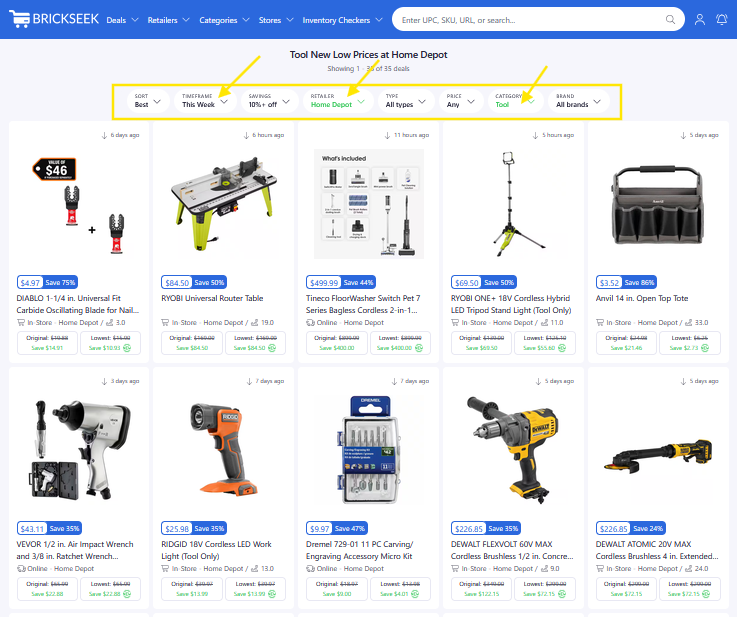
One of the best ways to find relevant deals is by combining multiple filters.
For example, you might browse:
- Home Depot + Power Tools
- Walmart + Toys
- Lowe's + Outdoor Equipment
Using several filters together helps eliminate unrelated products and gives you more focused results.
Experiment with Different Searches
There isn't a single "correct" way to use filters.
Try different combinations to discover products you may not have otherwise found.
If your results seem too broad, add another filter.
If they're too narrow, remove one and expand your search.
Filters Work Across BrickSeek
You'll find filtering options throughout many areas of BrickSeek, including:
- Staff Picks
- Today's New Low Prices
- Local Deals
- Online Deals
Learning how to use filters effectively is one of the easiest ways to improve your overall BrickSeek experience.
Pro Tips
💡 Start broad, then gradually narrow your results.
💡 Try different retailer and category combinations to uncover hidden opportunities.
💡 If you aren't finding what you expected, remove one filter before starting over.
💡 Save products you're interested in to your Shopping List for easy access later.
Frequently Asked Questions
Why don't I see every filter on every page?
Different pages serve different purposes, so the available filters may vary depending on the type of deals you're viewing.
Can I use more than one filter at a time?
Yes. Combining multiple filters is one of the best ways to narrow your results and quickly find relevant deals.
Why did my results disappear?
It's possible your filter combination is too restrictive. Try removing one or more filters to broaden your search.
Related Lessons
- Understanding Deal Feeds
- Staff Picks
- Today's New Low Prices
- Local Deals
- Online Deals