Searching by Product URL
Learn how to search an Inventory Checker using a product URL from a supported retailer for fast and accurate results.
Searching by Product URL
The easiest way to search an Inventory Checker is by using a product URL from a supported retailer.
Instead of manually searching for a UPC or SKU, simply copy the product's web address and let BrickSeek identify the product for you.
For most members, this is the fastest and most convenient search method.
Step 1: Find the Product
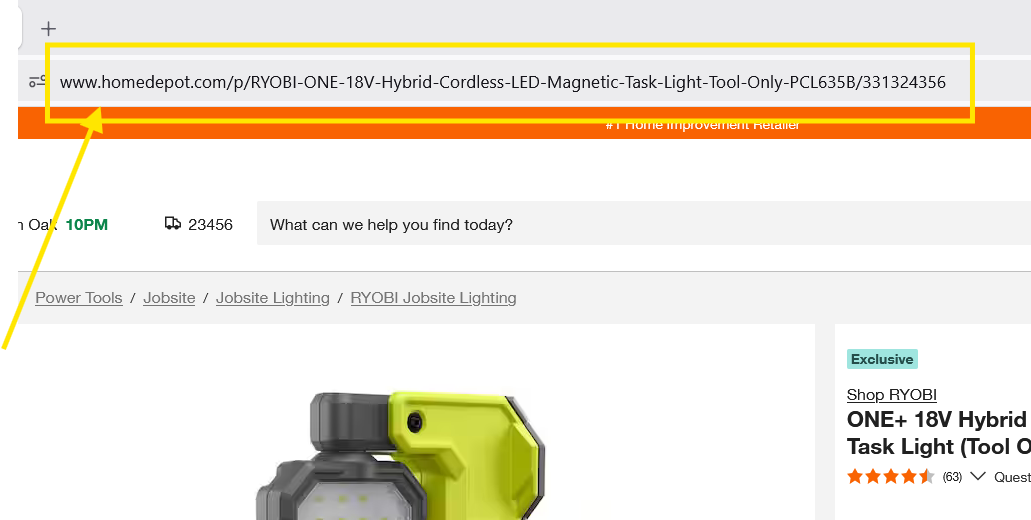
Visit a supported retailer's website and open the product you want to check.
Once you're on the product page, copy the URL from your browser's address bar.
Step 2: Paste the URL
Open the appropriate Inventory Checker in BrickSeek.
Paste the product URL into the search field and click Search.
BrickSeek will identify the product and retrieve available pricing and inventory information.

Step 3: Review the Results
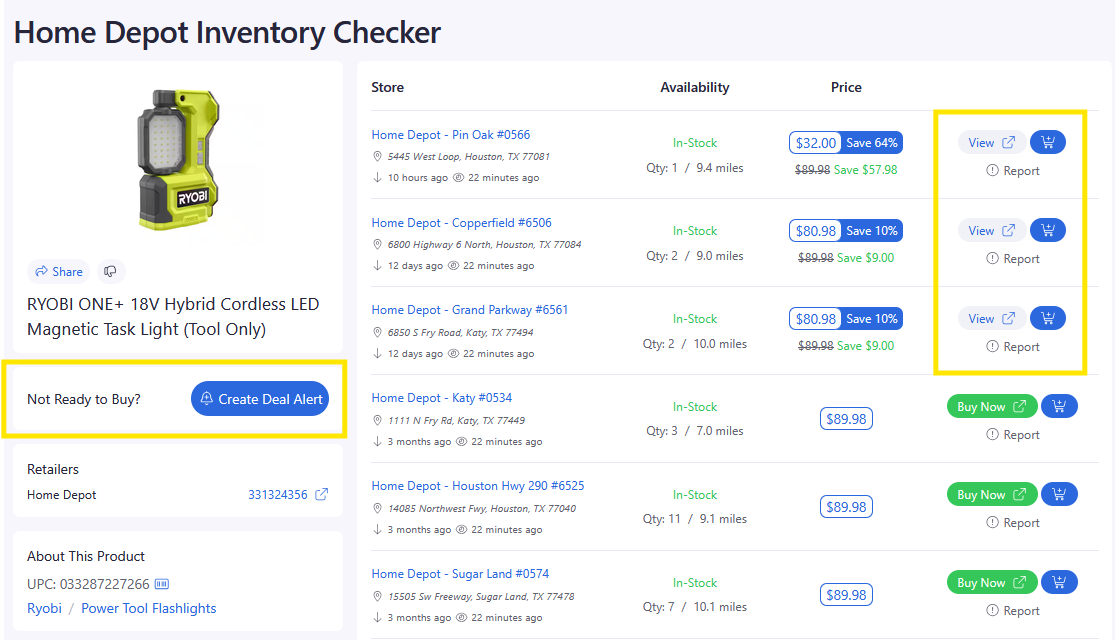
After the search completes, you'll see available information for nearby stores.
Depending on the retailer, results may include:
- Store location
- Current price
- Inventory status
- Distance
- Product details
Take a moment to compare the available results before deciding where to shop.

Step 4: Continue Exploring
From the results page, you can:
- Add the item to your Shopping List
- Create a Deal Alert
- Click View to open the retailer's website
Inventory Checkers are often the starting point for a complete shopping workflow inside BrickSeek.
Pro Tips
💡 Copy the entire URL directly from the retailer's address bar.
💡 Product URLs are usually faster and easier than locating a UPC or SKU.
💡 Compare multiple nearby stores before making a trip.
💡 Verify the latest pricing and availability before purchasing.
Frequently Asked Questions
Do I need the entire URL?
Yes. Copy the complete product URL from the retailer's website to help BrickSeek identify the correct item.
What if my search doesn't return any results?
Double-check that you copied the full URL and that you're using the Inventory Checker for the correct retailer.
If the issue continues, you can use the Report an Issue feature to let us know.
Can I still search using a UPC or SKU?
Absolutely. BrickSeek also supports UPC and SKU searches when available.
Related Lessons
- Finding Local Inventory
- Searching by UPC & SKU
- Understanding Inventory Results
- Using Shopping Lists (future lesson)